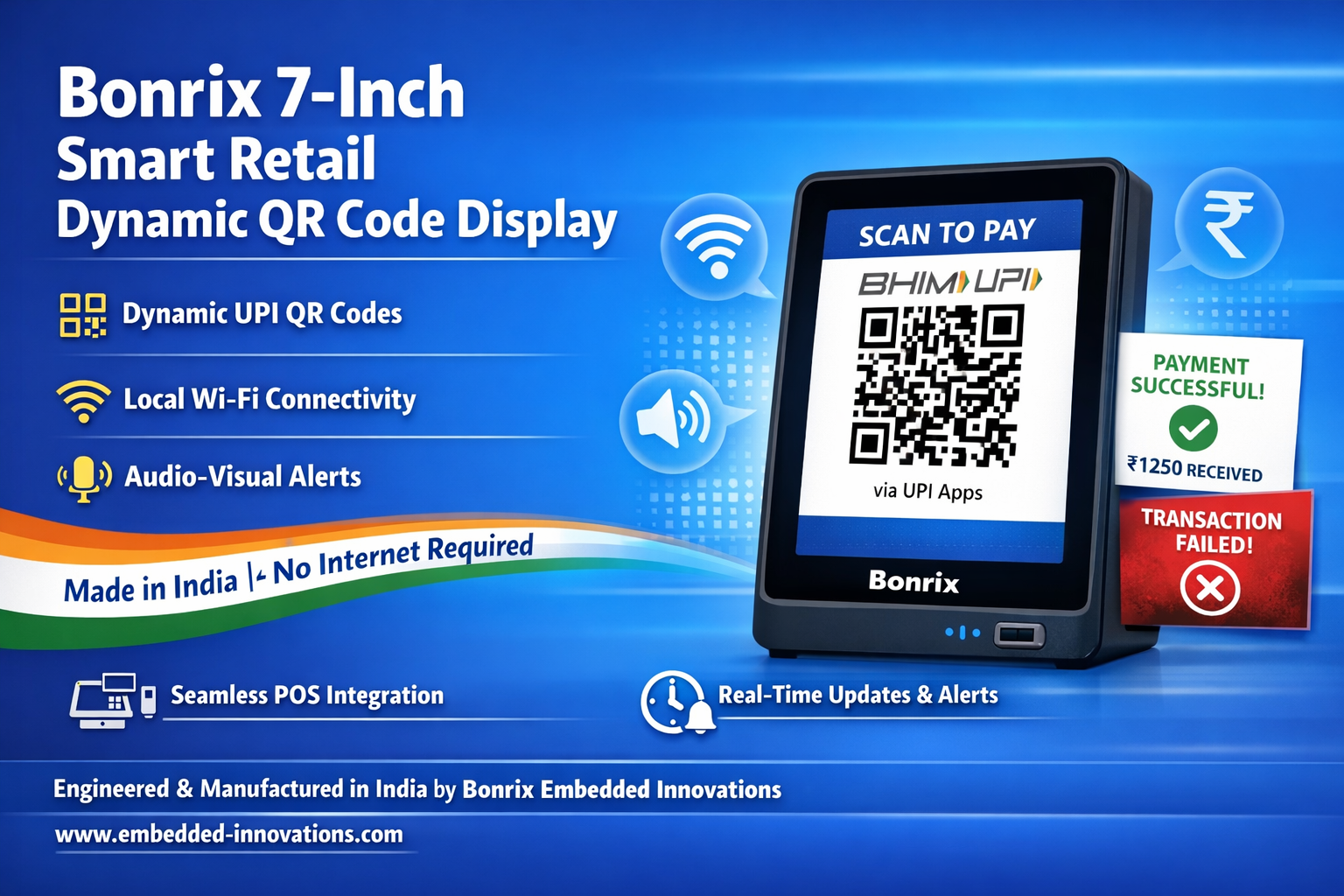
WiFi Configuration Guide: 3.5" WiFi Dynamic QR Display (BEI-CFD-001-WIFI)
📡 Step-by-step guide to configure WiFi on your Bonrix Dynamic QR Display. Connect via hotspot, set local network credentials & manage device via web interface. Made in India.
This document provides a step-by-step guide on how to configure WiFi settings on your 3.5-inch WiFi Dynamic QR Code Display (Model: BEI-CFD-001-WIFI).
⚙️ WiFi Configuration Steps
Step 1: Power On the Device
- Power on the device — it will start in WiFi Hotspot Mode automatically
- Screen displays the default WiFi SSID (e.g., "AutoConnectAP")
Step 2: Connect to the WiFi Hotspot
- On your mobile, laptop, or desktop, scan for available WiFi networks
- Connect to the SSID shown on the Dynamic QR Code Display (default:
AutoConnectAP) - No password required for initial hotspot connection
Step 3: Access the WiFi Configuration Page
- A WiFi Configuration Page should open automatically in your browser
- If it doesn't, manually enter the IP address shown on the display:
http://192.168.4.1/(default gateway)
Step 4: Enter Local WiFi Credentials
- In the WiFi Manager/Configuration Page, enter:
- Local WiFi SSID: Your network name
- Password: Your WiFi password
- Click Save Configuration to store credentials on the device
Step 5: Device Connects to Local WiFi
- The device will restart and attempt to connect to your local WiFi network
- If connection fails, restart the device manually
- Once connected, the screen displays:
- ✅ SSID of your local WiFi network
- 🌐 Newly allocated IP address (e.g.,
192.168.23.119)
Step 6: Access Device Management Web Page
- Open a browser on any device connected to the same local LAN/WiFi
- Enter the IP address shown on the display:
http://192.168.23.119 - This opens the Device Management Web Page for remote control
Step 7: Perform Device Operations
From the Device Management Web Page, you can now:
- 🔧 MQTT Configuration: Set up cloud connectivity for remote management
- 🔄 Reset WiFi Settings: Revert to hotspot mode for reconfiguration
- 🖼️ Display Dynamic QR Codes: Use the built-in Test Utility to preview QR display
- 🔗 HTTP Local LAN API: Integrate with your billing or ERP software via RESTful endpoints
📋 Device Details
| Field | Value |
|---|---|
| Product | 3.5 inch WiFi Dynamic QR Code Display |
| Model | BEI-CFD-001-WIFI |
| Function | Customer Facing Display for BHIM UPI Payment Collection at Retail Stores |
| Key Feature | Wireless Integration with Billing Software using WiFi (Local LAN) |
| Cloud Support | MQTT Cloud Support for enterprise-scale remote management |
| Display | 3.5" TFT LCD, 328×480 pixels, customer-facing orientation |
| Power | 5V DC via USB — no external adapter required |
| Manufacturer | Bonrix Embedded Innovations, Ahmedabad, Gujarat, India 🇮🇳 |
💡 Pro Tips for WiFi Setup
- 🔐 Use 2.4GHz WiFi: The device supports 2.4GHz networks — ensure your router broadcasts on this band
- 📶 Strong Signal: Place the display within good WiFi range for reliable connectivity
- 🔄 Static IP (Optional): For enterprise deployments, configure a static IP via your router to avoid address changes
- 🔧 MQTT for Scale: Use MQTT cloud support for managing multiple displays across locations
- 📱 Mobile Management: Access the device management page from any mobile browser on the same network
🔗 Company Details & Support
Name: Bonrix Embedded Innovations
Location: Ahmedabad, Gujarat, India 🇮🇳
📘 Facebook:
/bonrixembeddedinnovations
🌐 Website:
Embedded Innovations
💬 WhatsApp:
Contact Us
✉️ Email:
info@embedded-innovations.com |
embeddedinnovations.bonrix@gmail.com
📞 Phone:
+91 94097 45500 /
+91 94290 45500